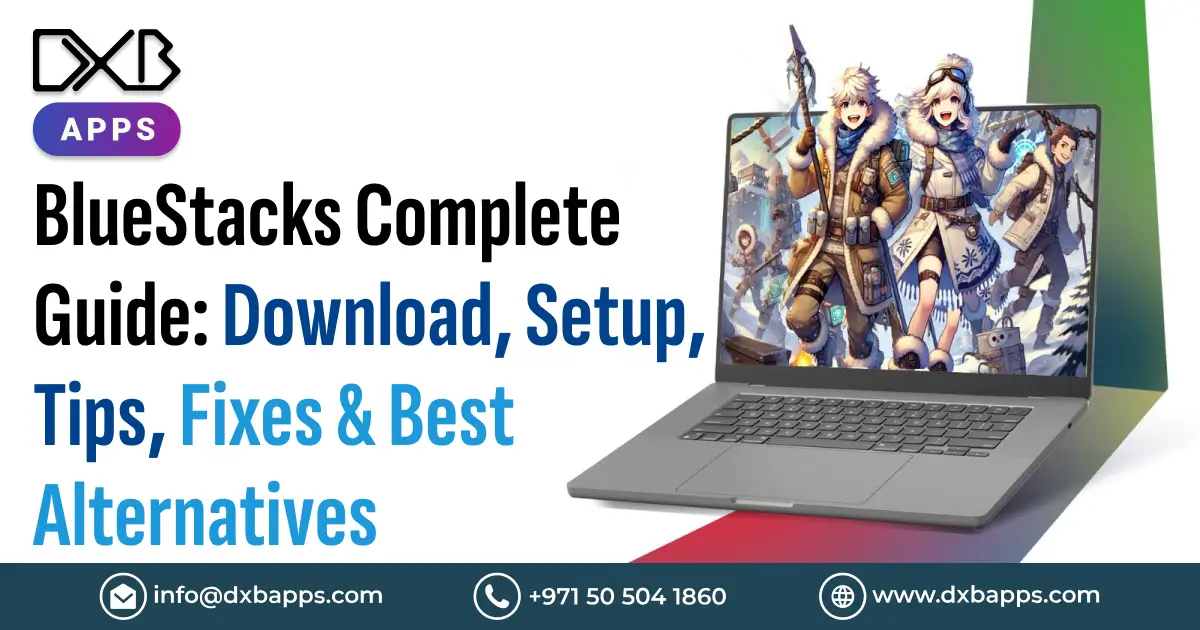
BlueStacks is one of the most popular ways to run Android apps and games on a PC or Mac. You do not need a separate phone. You can play on a bigger screen and use a keyboard and mouse. You can also test apps and get smoother performance.
BlueStacks offers a simple Android emulator for desktop use. The BlueStacks Android emulator lets you download apps and sign in with Google. You can set custom controls and change gameplay settings. You can also manage many apps from your desktop.
BlueStacks offers options like BlueStacks 5 for PC gaming. It also offers BlueStacks 10 with hybrid cloud gaming support. This guide shows how to download and set up BlueStacks. It also explains performance tips, common fixes, and alternatives. This helps you pick the right Android emulator.
What Is BlueStacks?
BlueStacks is an Android emulator for Windows, Mac, or supported cloud options. You can update applications, Google play as well as Android functionalities. You are not supposed to use a phone solely. There are several questions among users regarding the BlueStacks Android emulator because it has larger screens and greater controls.
What Is BlueStacks Used For?
BlueStacks is primarily employed in order to execute Android applications and games on a computer. The BlueStacks app has the mobile experience, and advantages of a desktop. You have a bigger screen, have the ability to use a keyboard and perform better multitasking.
For gamers, BlueStacks can improve play with:
- Keyboard and mouse support
- Custom game controls
- High FPS settings
- Multi-instance gameplay
- Screen recording options
- Better visibility on a larger screen
The BlueStacks mobile experience is not only for gaming. You can use mobile-only apps and test Android apps. You can also use social apps or manage many accounts. This helps casual users, gamers, and app testers.
Is BlueStacks Free to Use?
Yes, BlueStacks is free to download and use. You can do the BlueStacks app download from the official website.
The basic BlueStacks download process includes:
- Visit the official BlueStacks website
- Download the installer
- Open the setup file
- Follow the install steps
- Sign in with a Google account
- Download apps from Google Play
BlueStacks System Requirements
Check your device before you install BlueStacks. The BlueStacks system requirements differ for Windows and Mac. Windows users mainly use BlueStacks 5. Mac users use BlueStacks Air on Apple Silicon.
BlueStacks System Requirements for Windows
For BlueStacks download for PC, meet the minimum requirements.Recommended specs give smoother play and less lag.
Minimum Requirements - Windows
To run BlueStacks 5, your PC should have:
- Windows 7 or above
- Intel or AMD processor
- At least 4GB RAM
- 5GB free disk space
- Administrator access
- Updated graphics drivers
BlueStacks 5 may run slower on older PCs.
Recommended Requirements - Windows
For better results with the BlueStacks Android emulator, BlueStacks recommends:
- Windows 10 or above
- Intel or AMD multi-core processor
- CPU single-thread benchmark above 1000
- Intel, NVIDIA, or ATI GPU benchmark 750 or higher
- 8GB RAM or more
- SSD or hybrid storage
- Broadband internet connection
- Virtualization enabled
- Updated graphics drivers
These specs help with gaming and multitasking. They also help with multiple emulator instances.
BlueStacks System Requirements for Mac
For BlueStacks Mac, the current version is BlueStacks Air.
- It is made for Apple Silicon Macs.
- It supports macOS 11 Big Sur or later.
- It supports M1 through M4 chips.
Minimum Requirements - Mac
To install BlueStacks Mac, your device should have:
- macOS 11 Big Sur or higher
- Apple Silicon chip: M1, M2, M3, or M4
- 8GB RAM
- 12GB free storage
You need these specs to run BlueStacks Air.
Recommended Requirements - Mac
For smoother BlueStacks Mac performance, stronger specs help:
- Apple Silicon Mac
- 16GB RAM
- Enough free SSD storage
- Updated macOS version
- Stable internet connection
Mac users should use BlueStacks Air on supported Apple Silicon devices. This differs from BlueStacks 5, which is mainly for Windows.
How to Download BlueStacks?
If you wonder how to download BlueStacks, use the official website. Avoid third-party links and files. They may be unsafe or out of date.
How to Download BlueStacks on Windows 10/11?
To do BlueStacks download for PC, follow these steps:
- Visit the official BlueStacks website
- Choose BlueStacks 5 for Windows
- Download the installer
- Open the setup file
- Follow the installation steps
- Launch BlueStacks
- Sign in with your Google account
- Download apps from Google Play
How to Download BlueStacks on Mac?
For BlueStacks Mac, follow these steps:
- Visit the official BlueStacks website
- Select the Mac download option
- Download the installer file
- Open and install BlueStacks
- Launch the app
- Sign in and start using apps or games
BlueStacks for Mac M1 / M2 - Apple Silicon
BlueStacks for Mac works on supported Apple Silicon devices. This includes M1 and M2 Macs. Keep macOS updated for best results. Make sure you have enough RAM and storage.
How to Download BlueStacks APK?
Many users search for BlueStacks APK download. BlueStacks is not installed as an APK on PC or Mac. It is desktop software.
You can still install APK files inside BlueStacks:
- Open BlueStacks
- Click “Install APK”
- Choose the APK file
- Wait for installation
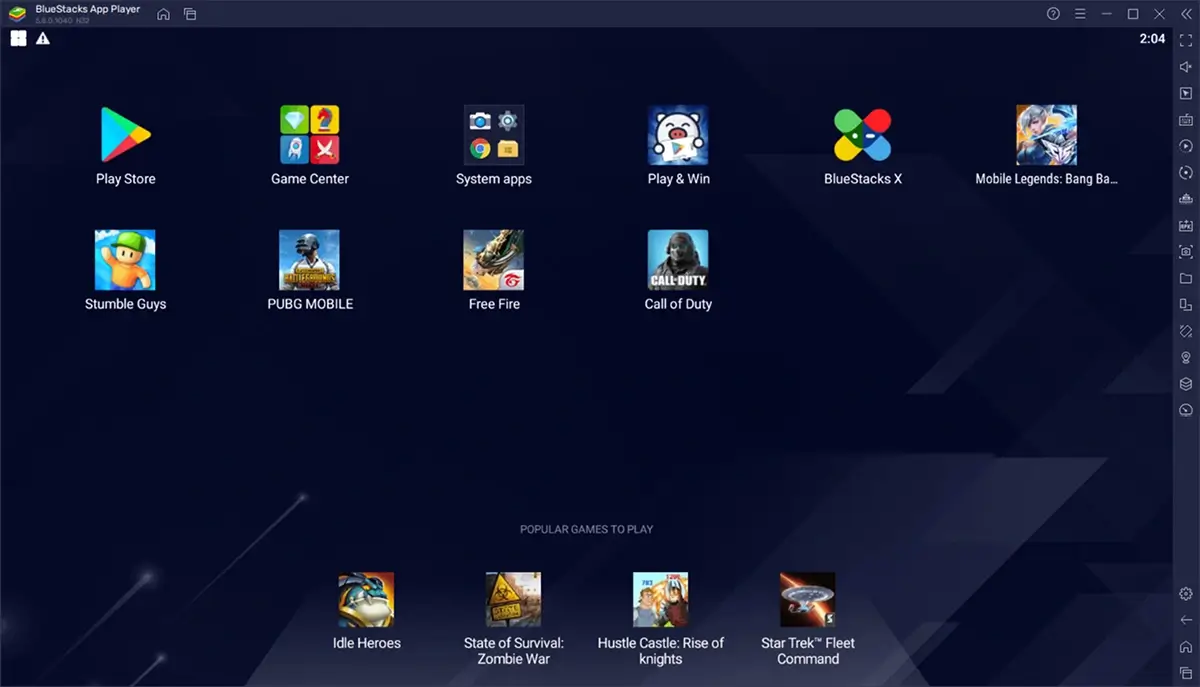
- Open the app inside BlueStacks
How to Download BlueStacks APK on Mobile?
BlueStacks is not a mobile APK app. It runs Android apps on a computer. So, BlueStacks mobile means mobile apps on PC or Mac.
Remember:
- BlueStacks is for PC and Mac
- It is not installed on phones as an APK
- You can install APK files inside BlueStacks
- Mobile users should use Google Play
How to Install BlueStacks? Step-by-Step
After BlueStacks download for PC, the install is simple. Windows uses the official .exe installer for BlueStacks 5. Mac uses the installer for BlueStacks Air. The official page says setup takes only a few minutes.
How to Install BlueStacks on Windows?
To install BlueStacks on Windows:
- Download BlueStacks 5 from the official website
- Open the downloaded .exe file
- Click Install Now
- Wait for setup to finish
- Launch BlueStacks
- Sign in with Google Play
- Install Android apps and games
This gives the BlueStacks Android experience on your PC.
Enabling Virtualization for BlueStacks - Windows
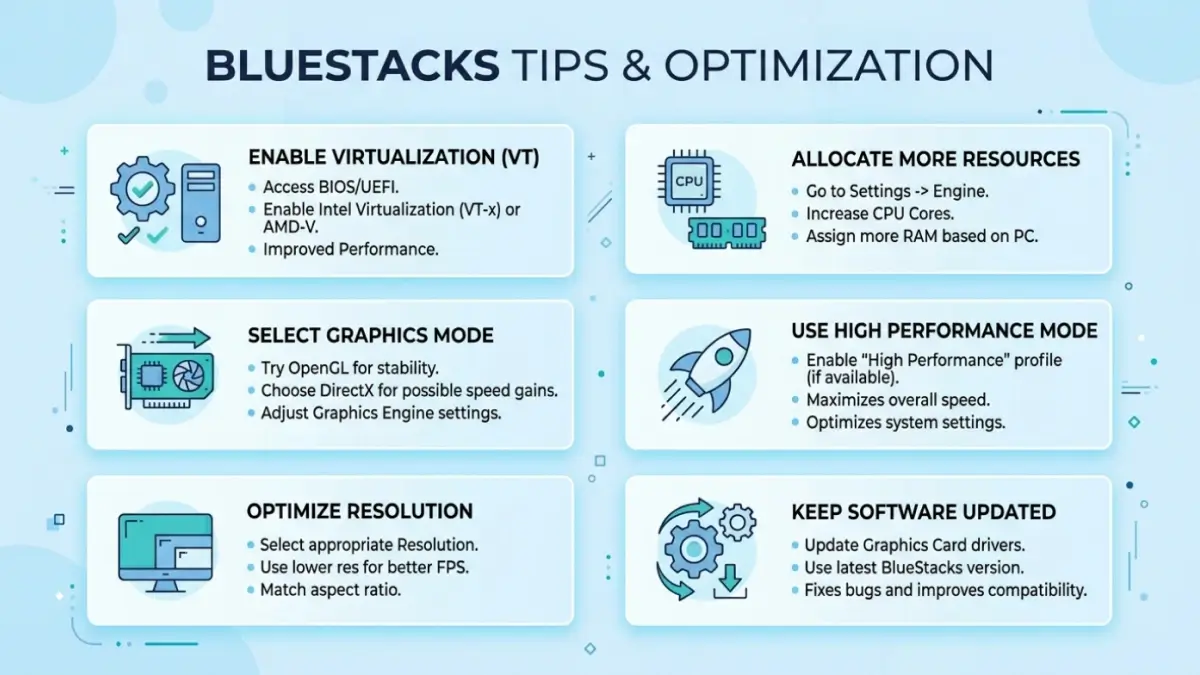
Virtualization can make BlueStacks faster and smoother. BlueStacks recommends enabling it for better performance.
Basic steps:
- Restart your PC
- Open BIOS or UEFI settings
- Find Intel VT-x, AMD-V, or Virtualization Technology
- Enable it
- Save changes and restart
- Open BlueStacks again
This helps when BlueStacks still feels slow.
How to Install BlueStacks on Mac?
For BlueStacks Mac, use BlueStacks Air on Apple Silicon. The official guide uses the .pkg installer and a setup wizard.
Steps include:
- Download BlueStacks Air from the official website
- Open the .pkg installer
- Click Continue
- Follow on-screen instructions
- Finish installation
- Launch BlueStacks Air
- Start installing Android games
How to Set Up & Use BlueStacks on PC
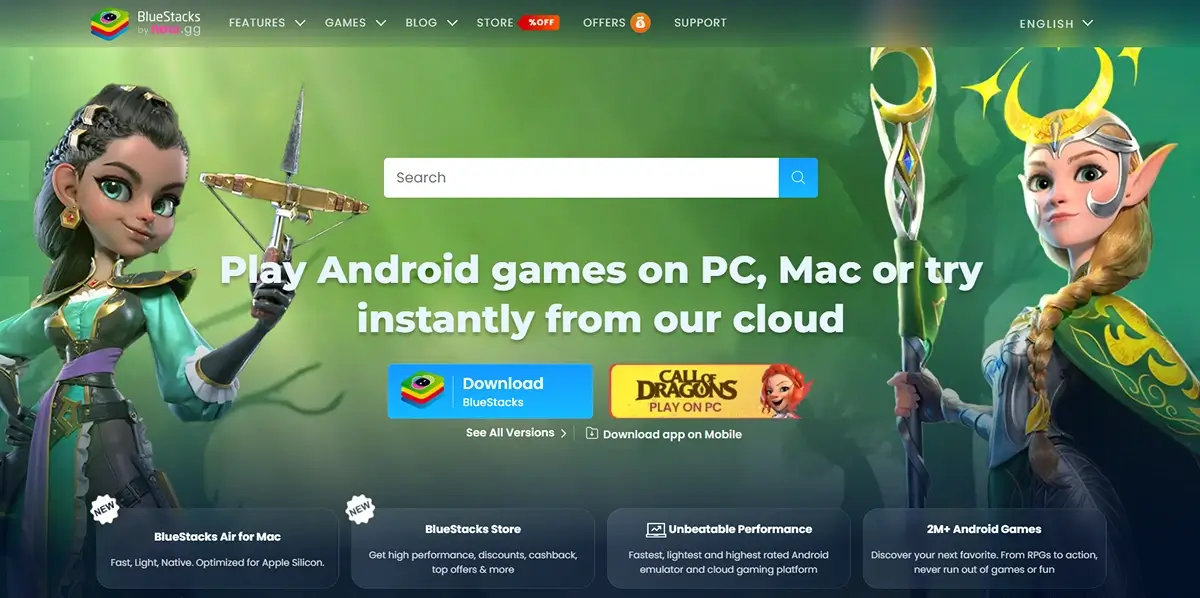
In case you are wondering how to use bluestacks on PC, then one can use it once it is installed. The bluestacks android emulator allows you to sign in, install applications, change settings, as well as play android based games with the support of a keyboard, mouse or even a control.
How to Configure BlueStacks for Best Performance?
To improve bluestacks 5 performance:
- Open BlueStacks settings
- Go to Performance
- Allocate more CPU cores and RAM if available
- Enable high FPS for smoother gaming
- Use SSD storage if possible
- Keep graphics drivers updated
- Enable Virtualization
- Close unnecessary background apps
BlueStacks settings include sections for Performance, Display, and Graphics, allowing users to adjust resources, resolution, renderer options, and GPU preferences.
How to Sign In to Google Play Store on BlueStacks?
To use the bluestacks app store features:
- Open BlueStacks
- Go to System Apps
- Click Google Play Store
- Sign in with your Google account
- Search for your app or game
- Click Install
BlueStacks confirms that signing in with Google gives users access to apps and games from the Google Play Store and can help save or retrieve game progress.
How to Install Apps on BlueStacks Using APK?
You can also install a bluestacks apk file manually if the app is not available on Google Play.
Steps:
- Download the APK file from a trusted source
- Open BlueStacks
- Click Install APK
- Select the APK file
- Wait for installation
- Open the app from the BlueStacks home screen
This makes the bluestacks app useful for both Play Store apps and external APK files.
How to Use BlueStacks on a PC for Gaming?
BlueStacks is widely used for Android gaming on PC. The official BlueStacks site highlights features such as keyboard and mouse controls, multi-instance support, and high-FPS gameplay.
Gaming benefits include:
- Bigger screen experience
- Keyboard and mouse control
- Custom key mapping
- Multi-instance gaming
- High FPS settings
- Gamepad support
- Easier multitasking
Setting Up Keyboard Controls
The bluestacks app allows users to create and edit controls for different games. You can open the game controls menu, adjust key mappings, and switch between control schemes during gameplay. BlueStacks notes that users can switch control schemes instantly using Ctrl + Shift + Q on the latest version.
Basic steps:
- Open a game in BlueStacks
- Click the keyboard icon or game controls menu
- Choose an existing control scheme
- Edit keys if needed
- Save changes
- Start playing
Setting Up Gamepad / Controller
The bluestacks android emulator also supports gamepads for many games. BlueStacks says users can plug in a gamepad and play supported games with built-in controls.
To set it up:
- Connect your controller to PC
- Open BlueStacks settings
- Go to Gamepad
- Enable gamepad detection
- Launch a supported game
- Adjust controls if needed
BlueStacks also allows users to create or edit gamepad controls for games that do not already have built-in controller settings.

BlueStacks Tips & Optimization
To get the best results from bluestacks 5, adjust settings based on your PC performance. The bluestacks android emulator works better when your system resources are properly managed.
How to Make BlueStacks Faster on Low-End PCs?
If your PC barely meets bluestacks system requirements, try:
- Close background apps
- Enable virtualization
- Lower resolution
- Use Eco Mode
- Keep drivers updated
Best BlueStacks Settings for Gaming
To create an even smoother bluestacks android gaming, change CPU, RAM, FPS and graphics settings.
Settings for High-End PCs
High FPS, more RAM, more CPU cores, and performance mode in bluestacks 5.
Settings for Low-End PCs
Set low resolution, less CPU cores, balanced mode, and lower FPS.
How to Use BlueStacks Multi-Instance?
The bluestacks app allows its users to create various Android environments in which various games or accounts can be run.
Is BlueStacks Safe?
Yes, and generally speaking, overall, there is nothing unsafe about BlueStacks provided that one is downloading it via the official site. The query most frequently asked by many users is: is bluestacks safe? because emulators require permission into systems yet the biggest threat comes in the form of unofficial installers or unsafe apk files.
Is BlueStacks Safe for PC in 2026?
Yes, is bluestacks safe on the computer is generally safe provided you download the official bluestacks download on the computer.
Safety tips:
- Download from the official website
- Keep BlueStacks updated
- Avoid cracked versions
- Use antivirus protection
- Install apps from trusted sources
Is BlueStacks Safe to Use for Gaming?
Yes, BlueStacks is game safe. The bluestacks android emulator is an android emulator on PC that has keyboard controls, performance improvements and multi-instance capabilities. To decrease the level of security threats, avoid modified game APKs.
BlueStacks Privacy & Data Collection
Similarly to most applications, BlueStacks can gather device, usage and technical information. To operate the bluestacks app without any issues, inspect permission, privacy settings, and should not use unofficial APK versions.
Best Alternatives to BlueStacks
In case the version BlueStacks 5 is not compatible with your device, then you have an option of another bluesnacks alternative. The most suitable substitute of bluestacks is determined by your PC specifications, requirements in games and desired features.
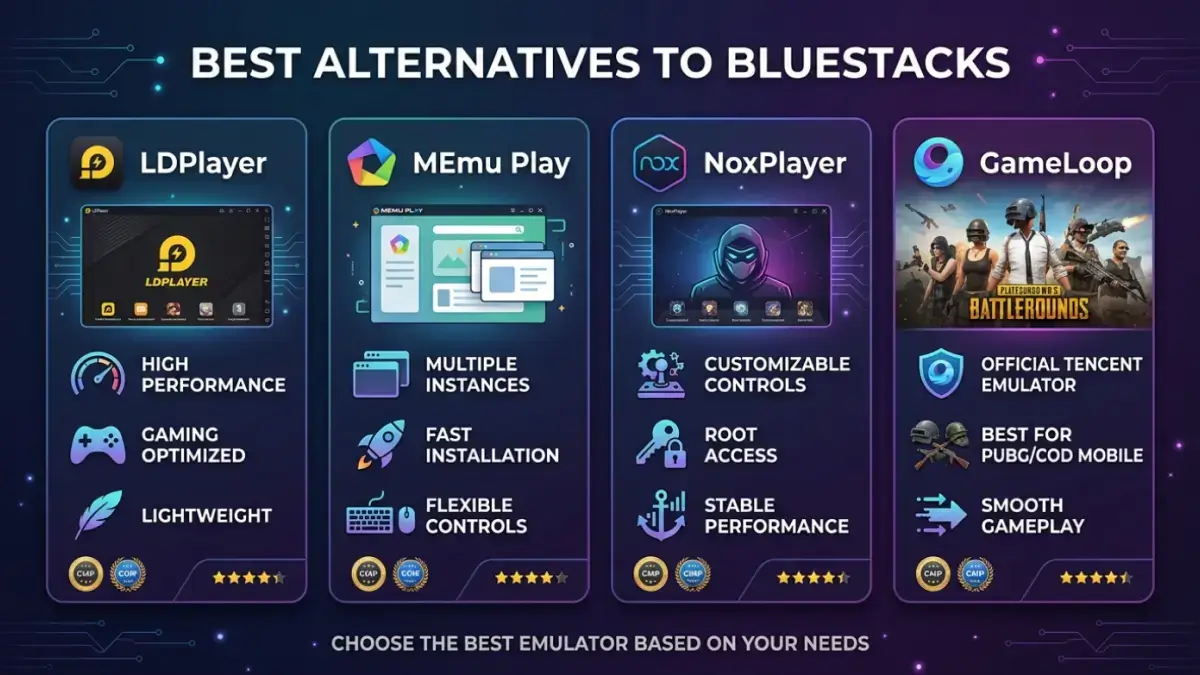
LDPlayer - Best Free BlueStacks Alternative
LDPlayer is a strong bluestacks alternative for Android gaming on Windows. It supports keyboard and mouse controls and is designed for playing mobile games on PC. It is a good option for users who want a fast bluestacks android experience.
MEmu Play - Lightweight BlueStacks Alternative
MEmu Play is another popular bluestacks alternative for users who want a simple and lightweight bluestacks android emulator option. It focuses on Android games and apps for Windows PCs.
NoxPlayer - Best BlueStacks Alternative for Gaming
NoxPlayer is a fine substitute for bluestacks game-centric users. It can work with Windows and Mac, Android 9, Android 12 beta, control via the keyboard, and the popular games on a mobile device.
GameLoop - Official Tencent Android Emulator
GameLoop is another gaming-oriented bluestacks alternative, particularly when it comes to such games as PUBG Mobile, Call of Duty: Mobile, Free Fire, and Pokémon UNITE. GameLoop also states that it is a PC mobile game emulator of mobile games that run on Android.
Bliss OS - Best for Advanced Users
Bliss OS unlike the ordinary emulators is a PCs and tablets based operating system based on Android. It may serve as a worthy substitute to bluestacks among the more advanced users who may require a complete bluestacks android style system, unfortunately users need to check its official status before installing since the project site currently displays a temporary lockdown message.
| Emulator | Best For | Key Benefit |
|---|---|---|
| BlueStacks 5 | Overall Android gaming | Multi-instance, high FPS, game controls |
| LDPlayer | Free gaming emulator | Fast mobile gaming on PC |
| MEmu Play | Lightweight use | Simple Android app and game support |
| NoxPlayer | Gaming and multitasking | Android 9/12 support and Mac/Windows options |
| GameLoop | Tencent games | Best for PUBG Mobile and COD Mobile |
| Bliss OS | Advanced users | Full Android-based PC OS |
What Influences Mobile Game Development Cost?
The cost of developing a mobile game will depend on the size, features and quality of the game. An example of a basic game in 2D costs less, whereas a 3D game with more than one player requires more game design, code, testing and backend support. The largest cost factors of companies intending mobile app development in Dubai include:
- Game type and genre
- 2D or 3D graphics
- Number of levels
- Multiplayer features
- Animation quality
- Backend and cloud support
- Payment gateway integration
- Testing and maintenance
Average Cost by Game Complexity
The gaming app development cost usually increases with complexity. Industry estimates for Dubai show that mobile game development can range from around AED 70,000 for simple 2D or hyper-casual games to AED 1,800,000+ for advanced multiplayer, AR/VR, or high-end 3D games.
| Game Type | Estimated Cost |
|---|---|
| Basic 2D Game | AED 70,000 – AED 150,000 |
| Casual Mobile Game | AED 150,000 – AED 300,000 |
| 3D Game | AED 300,000 – AED 700,000 |
| Multiplayer Game | AED 700,000 – AED 1,800,000+ |
Cost Comparison: UAE vs Other Regions
Hiring a mobile app development company in Dubai or using app development services in Abu Dhabi may cost more than outsourcing to some Asian markets, but the UAE offers better local communication, regional market knowledge, Arabic/English localization, and easier compliance support. UAE app-development estimates commonly sit in the tens of thousands to hundreds of thousands of dollars depending on scope.
Key Features That Impact Budget
Important app development cost factors include:
- Login and user profiles
- In-app purchases
- Multiplayer mode
- Push notifications
- Leaderboards
- Chat system
- Custom characters
- AR/VR features
- Cloud saving
- Admin dashboard
The more features you add, the more time developers need for design, coding, testing, and security.
Tips to Reduce Mobile Game Development Costs
For affordable mobile app development, start with an MVP instead of a full-featured game. Launch the core version first, test user response, and add advanced features later.
Cost-saving tips:
- Start with 2D before 3D
- Use ready-made assets where suitable
- Keep features limited in version one
- Choose one platform first
- Reuse game mechanics
- Plan updates after launch
Why is the UAE a Growing Hub for Game Development?
The UAE is becoming a strong market for mobile app development Dubai and gaming because of digital infrastructure, high smartphone usage, esports growth, and government-backed gaming initiatives. Dubai Program for Gaming 2033 focuses on talent, content, and technology, while Abu Dhabi Gaming supports local content, gaming businesses, and esports growth.
For businesses, working with app developers in Abu Dhabi or Dubai can provide access to skilled teams, regional user insights, and a fast-growing digital entertainment market.
DXB APPS - Best Mobile App Development Company in Dubai
DXB APPS is a leading mobile app development company in Dubai helping startups, enterprises, and growing brands build powerful digital products. From business apps to gaming solutions, DXB APPS delivers custom app development with modern UI/UX, smooth performance, and scalable technology. For brands looking for professional mobile app development Dubai, DXB APPS offers complete support from idea planning to launch.
Why Choose DXB APPS for Mobile App Development?
Choosing the right mobile app development company in Dubai can make a major difference in app quality, cost, and long-term success. DXB APPS focuses on user-friendly design, secure development, and business-focused features.
Key reasons to choose DXB APPS:
- Custom mobile app solutions
- Experienced developers and designers
- Android and iOS expertise
- Scalable backend development
- Modern UI/UX design
- Testing and post-launch support
- Industry-specific app solutions
DXB APPS Core Services
DXB APPS provides complete mobile app development Dubai services for different industries, including ecommerce, real estate, healthcare, fintech, education, delivery, gaming, and enterprise solutions. The company also supports businesses looking for mobile app development Abu Dhabi with customized digital products.
iOS & Android App Development
DXB APPS builds high-performance iOS and Android apps designed for smooth user experience and long-term growth. Its mobile app development Dubai services include app strategy, UI/UX design, native development, testing, deployment, and maintenance.
Gaming Emulator & Emulator App Development
DXB APPS also supports businesses interested in gaming and emulator-based solutions. The gaming emulator app development cost depends on features such as game controls, multi-instance support, cloud sync, user accounts, performance settings, and device compatibility. For brands exploring android emulator app development, DXB APPS can help plan, design, and develop custom emulator-style applications.
Cross-Platform & Enterprise Solutions
For companies that want faster launch and wider reach, DXB APPS offers cross-platform and enterprise app solutions. Businesses looking for mobile app development Abu Dhabi can build apps that work across Android, iOS, tablets, and web-based systems while keeping development cost and time more efficient.
Get a Free Quote from DXB APPS
If you need a professional mobile app development company in Dubai, DXB APPS can help turn your idea into a powerful mobile application. Whether you need a business app, gaming app, emulator solution, or enterprise platform, the team provides tailored guidance based on your goals, features, and budget. Businesses searching for mobile app development Abu Dhabi can also request a free quote and discuss the best development approach.
Conclusion
BlueStacks remains one of the most popular Android emulators for users who want to run mobile apps and games on PC or Mac. It offers useful features such as keyboard controls, APK installation, multi-instance support, and gaming optimization. However, users should always check system requirements, download BlueStacks from the official website, and use trusted APK sources for safety.
For users who need a bluestacks alternative, options like LDPlayer, MEmu Play, NoxPlayer, GameLoop, and Bliss OS can also be considered based on performance, gaming needs, and device compatibility. Each emulator has its own strengths, so the best choice depends on whether you need speed, lightweight performance, advanced gaming features, or a full Android-based system.
For businesses planning to build Android apps, gaming platforms, or emulator-style solutions, working with a reliable mobile app development company in Dubai is important. DXB APPS provides professional mobile app development services for Dubai and Abu Dhabi businesses, helping brands create scalable, user-friendly, and high-performance mobile applications.
Frequently Asked Questions
What Is BlueStacks?
BlueStacks is an Android emulator that runs mobile apps and games on PC or Mac.
Is BlueStacks Safe?
Yes, BlueStacks is generally safe when downloaded from the official website and used with trusted apps.
Is BlueStacks Safe for PCs?
Yes, BlueStacks is safe for PC if you avoid unofficial installers, cracked files, and unknown APKs.
How to Download BlueStacks?
Visit the official website, choose your device version, download the installer, and follow setup steps.
How to Use BlueStacks on a PC?
Install BlueStacks, sign in to Google Play, download apps, adjust settings, and start using Android apps.
What Are the Best Alternatives to BlueStacks?
Top options include LDPlayer, MEmu Play, NoxPlayer, GameLoop, and Bliss OS.
Does BlueStacks Work on Mac?
Yes, BlueStacks works on supported Mac devices, especially Apple Silicon models through BlueStacks Air.
What Are BlueStacks System Requirements?
BlueStacks needs a supported OS, processor, RAM, storage space, updated drivers, and virtualization for better performance.
What Is the Difference Between BlueStacks 5 and BlueStacks 10?
BlueStacks 5 runs apps locally, while BlueStacks 10 focuses more on hybrid cloud gaming.
Can BlueStacks Run on a 2GB RAM PC?
No, BlueStacks 5 requires at least 4GB RAM, so 2GB RAM PCs are not suitable.