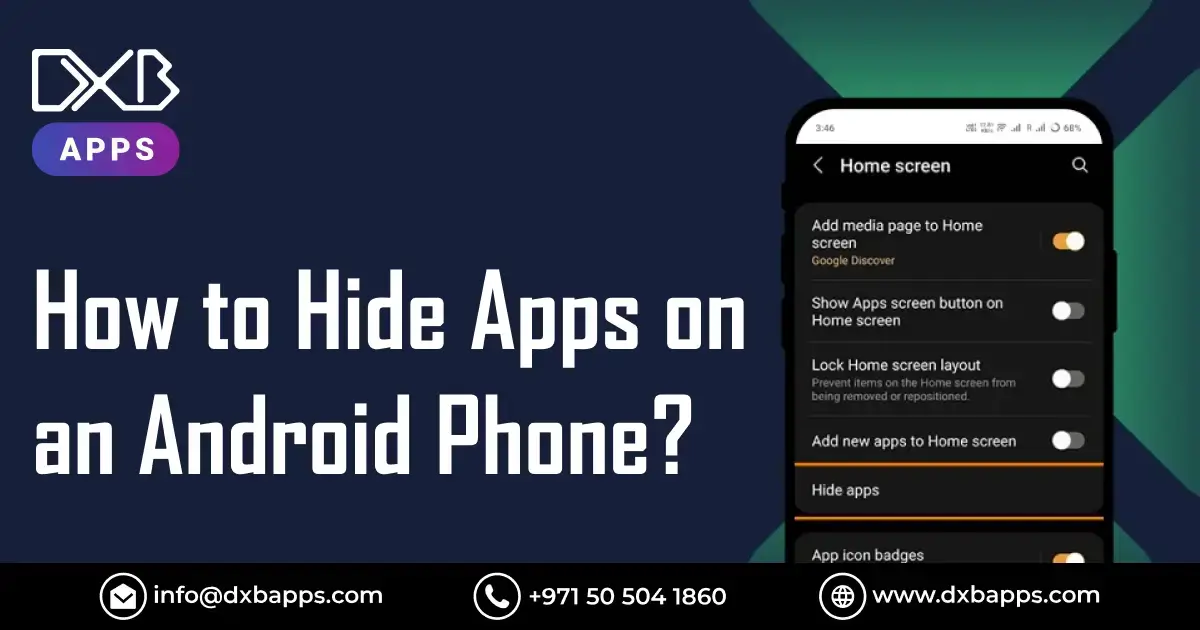
Hiding apps on an Android phone has become one of the most sought‑after customization tricks for users who value privacy, security, and a clean home screen. Whether you want to conceal sensitive apps like messaging or banking tools, keep nosy friends from snooping, or simply declutter your app drawer, Android offers multiple methods to hide apps without uninstalling them.
From built‑in launcher features to third‑party app lockers and secure folders, today’s Android devices give users more control over what appears on their screens, making it easier than ever to safeguard personal information on the go.
With the rapid evolution of Android versions, including the latest Android 14 and beyond, manufacturers like Samsung, Google Pixel, OnePlus, and Xiaomi have integrated robust app hiding features directly into their custom launchers. These tools allow you to hide apps without rooting your device, preserving warranty and security.
This overview of app hide application will guide you through the latest methods from built‑in settings to smart apps so you can choose the one that best fits your needs and keeps your digital life private and organized.

What Does Hiding Apps on Android Mean?
Hiding apps on an Android phone means concealing or making apps invisible from the main screen or app drawer, while still keeping them installed and functional in the background.
This feature of the hide application is primarily used for privacy, security, and organizational purposes. Users may want to hide certain apps to prevent others from easily accessing them, especially if the apps contain sensitive information such as banking apps, personal messages, or social media accounts.
When you hide an app, it is not deleted or uninstalled from the device, meaning it remains fully operational. Instead, it is removed from the main view, which makes it less accessible for prying eyes. Depending on the method used, hidden apps can be accessed only through passwords, PINs, or specific gestures. Some Android phones offer built-in options for app hiding, such as using the “App Drawer” or Secure Folders, while others might require third-party launchers or apps to achieve this.
This feature has become especially relevant as users seek to keep their phones more organized, protect personal data, and maintain privacy from others who may borrow or share the device. Whether you're using an app for work, banking, or personal use, knowing how to hide apps on Android can help you maintain a cleaner, more secure mobile experience.
Hiding vs Disabling vs Uninstalling Apps
When it comes to managing apps on an Android phone, users often wonder about the best way to manage apps based on their needs. The options available include hiding, disabling, and uninstalling apps, and each comes with its own advantages and implications. Understanding the difference between these three options is key to maintaining both a clean and functional device.
Hiding Apps
- Hiding apps involves making apps invisible to the user without removing them from the device entirely. This is ideal for apps that you want to keep on your phone for privacy or organizational reasons, but don’t want to clutter your home screen or app drawer.
- Hidden apps are still fully functional and accessible but are not visible unless you use a specific gesture, PIN, or password to unhide them. It’s a great option for users who want to keep certain apps private without deleting them.
Disabling Apps
- Disabling apps refers to deactivating certain pre-installed or system apps on your Android phone that you don’t use but can’t uninstall. By disabling these apps, they are removed from your app drawer and stopped from running in the background, which can help improve your phone’s performance.
- Disabling an app effectively prevents it from receiving updates, sending notifications, or consuming system resources. However, unlike uninstalling, disabled apps are still stored on your device and can be re-enabled later.
Uninstalling Apps
Uninstalling apps completely removes them from your Android phone, freeing up storage space and eliminating all associated data. This option is best for apps that you no longer need or use, and it ensures they won’t take up valuable resources or privacy space.
Once uninstalled, you cannot use the app unless you reinstall it. Keep in mind that uninstalling an app will remove all app data unless backed up, and you can’t easily restore it without downloading again from the app store.
Key Differences:
- Hiding is perfect for keeping apps out of sight without deleting them, great for privacy.
- Disabling helps to stop unnecessary apps from running without uninstalling them, ideal for pre-installed bloatware.
- Uninstalling completely removes apps from the device, freeing up space and system resources.
Choosing between these options depends on whether you want to keep the app for future use, save storage, or just declutter your phone.
Why Hide Apps on an Android Phone?
Hiding apps on an Android phone can serve a variety of purposes, from improving privacy to keeping your phone's interface neat and organized. It is a useful feature that allows users to take control over what is visible and accessible on their devices. Here are two key reasons why many users choose to hide apps on their Android phones:
Privacy and Security Reasons
- One of the most common reasons for hiding apps is to enhance privacy and security. If you have apps that store sensitive information like banking apps, social media, or messaging apps you might not want others to easily access them.
- Hiding these apps ensures that they are not visible to anyone who might borrow your phone or use it in public spaces.
- Even if your phone is unlocked, hidden apps can only be accessed through a password, PIN, or fingerprint, giving you an added layer of protection against unauthorized access.
- It’s an effective way to safeguard personal data and private conversations while maintaining the functionality of your apps.
Reducing Home Screen Clutter
- Another reason for hiding apps is to reduce clutter on your home screen or app drawer. Over time, many users install a wide variety of apps, some of which they may rarely use.
- These apps can take up valuable space and make the phone’s interface look disorganized.
- By hiding less frequently used apps, you can keep your phone looking clean and tidy, while still having quick access to the apps you use the most.
- This is especially useful for those who prefer a minimalist, distraction-free mobile experience, making it easier to focus on the apps that truly matter to them.
How to Hide Apps Using Android’s Built-In Features?
Android private apps offer several built-in features that allow you to hide apps without needing third-party apps or launchers. These options may vary slightly depending on the version of Android and the manufacturer of your device. Below are some common methods for hiding apps using Android’s built-in features:
Hiding Apps on Stock Android
Stock Android, also known as the pure Android experience, is the version of Android found on Google Pixel devices and some other phones that don't use custom skins. To hide apps on Stock Android, you can follow these steps to hide apps on Android:
Using the App Drawer:
- Open the App Drawer by swiping up on the home screen.
- Tap the three vertical dots in the upper-right corner to open the menu.
- Select Home Settings or Hide Apps.
- Choose the apps you want to hide from the list and tap to hide them.
- These apps will no longer appear in the App Drawer, but they are still installed and accessible if you search for them or use a dedicated gesture.
Using the Google Play Store:
- For apps installed from the Google Play Store, you can archive them, which hides them from your app drawer. This doesn’t uninstall the app, just removes it from the display.
This method is simple, effective, and doesn’t require any third-party apps, making it ideal for stock Android users.
Hiding Apps on Samsung, Xiaomi, and OnePlus Devices
On devices like Samsung, Xiaomi, and OnePlus, the manufacturer’s custom Android skins offer enhanced options for hiding apps. Here's how to do it on each:
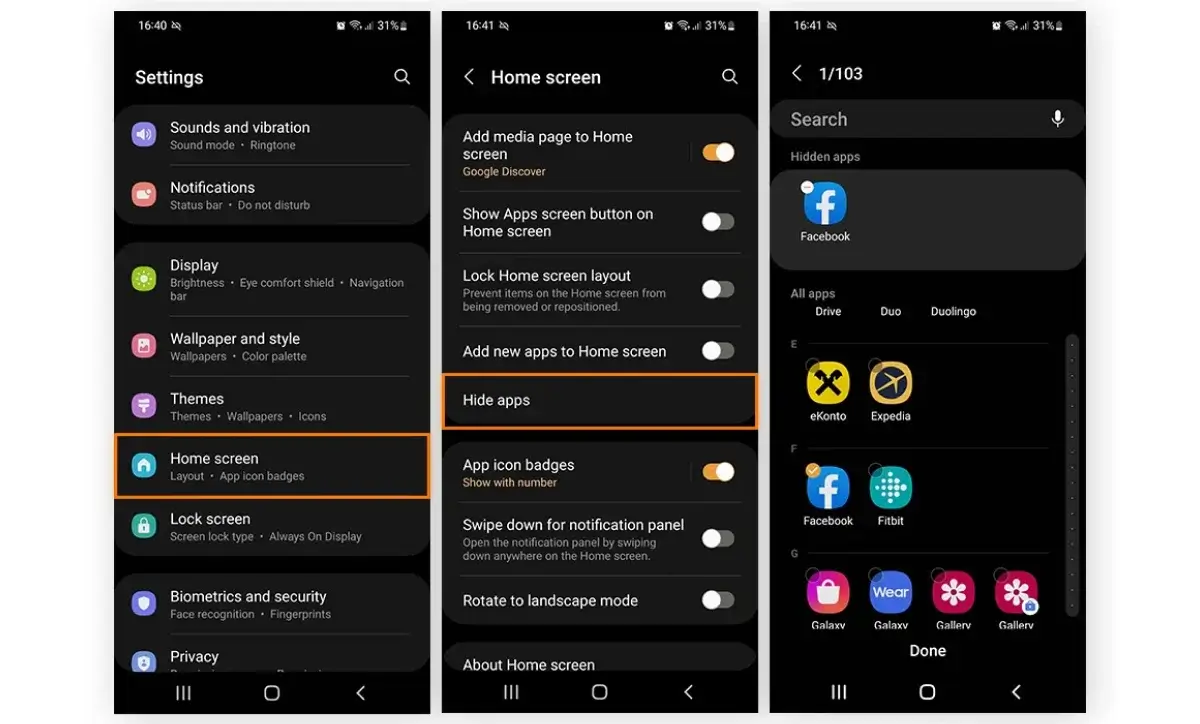
Samsung (One UI):
- Open the App Drawer and tap the three horizontal lines or dots in the upper-right corner.
- Select Settings from the dropdown.
- Choose Hide Apps.
- Select the apps you want to hide and tap Done. These apps will no longer show in the App Drawer or Home screen, though they are still on your device.
- To access hidden apps, simply search for them in the search bar or unhide them by going back into the settings.
Xiaomi (MIUI):
- Open the App Drawer.
- Tap the three dots in the upper-right corner and go to Settings.
- Select Hide Apps.
- Choose the apps you wish to hide and tap Done.
- These apps will not appear in the app drawer anymore, but you can search for them or find them by accessing the Hidden Folder in Settings.
OnePlus (OxygenOS):
- Open the App Drawer.
- Tap the three-dot menu at the top right and select Hide Apps.
- Select the apps to hide and confirm.
- Hidden apps will not appear on the home screen or app drawer, but you can still access them via Search or Settings.
These options give users of Samsung, Xiaomi, and OnePlus devices additional ways to customize their app visibility, enhancing both organization and privacy without the need for third-party apps or launchers.
Key Benefits of Hiding Apps Using Built-In Features:
- No need for third-party apps: Keep your phone running smoothly without adding extra software.
- Privacy and security: Limit access to sensitive apps without uninstallation.
- Customizable experience: Personalize the way your home screen and app drawer look.
By utilizing these built-in features, Android users can manage their apps in a way that suits their privacy needs and device storage preferences, keeping their devices neat and secure.
How to Hide Apps Using Android Launchers?
If you're looking for the best app hider for your Android device, third-party launchers can provide extra customization features. Launchers not only give you the ability to change the look of your phone but also offer enhanced privacy options like hiding apps. Here’s how you can hide app using some of the most popular Android launchers:
Hide Apps with Nova Launcher
Nova Launcher is one of the most popular and feature-packed Android launchers, allowing users to hide apps easily while maintaining a smooth and customizable experience. To hide apps with Nova Launcher, follow these steps:
- Install Nova Launcher: Choose hide app download and set up Nova Launcher from the Google Play Store if you don’t already have it.
- Open Nova Settings: Tap and hold on your home screen, then choose Settings.
- Go to App Drawer: Scroll down and tap App Drawer in the settings menu.
- Select "Hide Apps": Choose the Hide Apps option and then select the apps you want to hide.
- Confirm: Tap Done, and the selected apps will no longer be visible in the App Drawer or on your home screen.
Access Hidden Apps: You can still access hidden apps by searching for them or through the Nova settings.
Nova Launcher offers a seamless experience, allowing you to hide apps quickly without losing any of the functionality or data. This method is great for users who want to maintain a high level of customization while keeping their apps out of sight.
Hide Apps with Microsoft Launcher
Microsoft Launcher is another popular Android launcher that provides a simple way to hide apps. It comes with several features to improve productivity and organization, along with a privacy option to keep certain apps hidden from view.
- Install Microsoft Launcher: Download and set up Microsoft Launcher from the Google Play Store.
- Go to Settings: Long press on your home screen and select Launcher Settings.
- Find App Drawer: Scroll down and select App Drawer.
- Tap "Hide Apps": Under App Drawer, choose the Hide app icon.
- Select Apps to Hide: Pick the apps you want to hide, and tap Done.
- Access Hidden Apps: Hidden apps can be accessed by searching for them or going through the settings.
Microsoft Launcher’s app hiding feature offers a cleaner home screen and a more secure device, allowing users to hide sensitive apps easily. The integration with Microsoft’s services provides a smooth and efficient user experience.
Why Use Launchers to Hide Apps?
- More customization: Android launchers allow for greater flexibility in how your phone looks and functions.
- Easy app management: Hide apps without changing or deleting any app data.
- Enhanced security and privacy: Keep apps secure by hiding them from prying eyes, ideal for private apps like banking apps or messaging apps.
Using launchers like Nova Launcher or Microsoft Launcher can help you organize and secure your Android device while maintaining the apps that matter most to you. Whether you're looking to improve the aesthetic appeal of your phone or increase privacy, these launchers offer a simple, effective solution for hiding apps.
How to Hide Apps Using Secure Folder or App Lock?
For users who want to take their app privacy and security to the next level, using a Secure Folder or App Lock is an excellent option. These features not only hide apps but also password-protect them, ensuring that sensitive information remains secure. Here’s how to hide apps using Secure Folder and App Lock on your Android device.
Samsung Secure Folder Explained
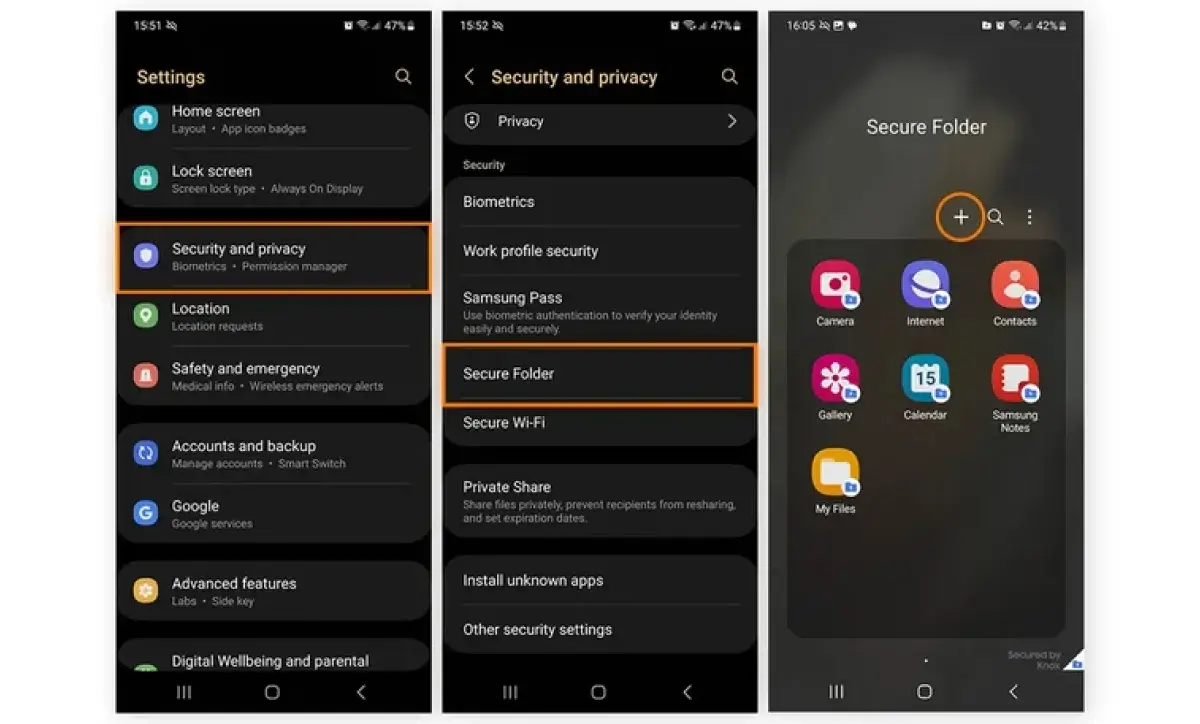
Samsung Secure Folder is a built-in feature available on Samsung Galaxy devices, providing a secure, encrypted space where users can store private apps and files. This feature ensures that your sensitive apps remain safe from prying eyes. To hide apps using Samsung Secure Folder, follow these steps:
Set Up Secure Folder:
- Go to Settings > Biometrics and Security > Secure Folder.
- Tap Start and log in with your Samsung account.
- Set up your preferred security method (PIN, password, fingerprint, or iris scan).
Move Apps to Secure Folder:
- Open the Secure Folder and tap Add Apps.
- Select the apps you want to hide and tap Add. These apps will now be hidden within the Secure Folder and can only be accessed by logging into the folder with your chosen security method.
Accessing Hidden Apps:
- You can access the apps anytime by going to the Secure Folder in the App Drawer or Settings.
- Hidden apps in the Secure Folder are fully functional and remain secure from anyone who doesn’t have access to your folder’s security.
Samsung Secure Folder is perfect for keeping apps like banking apps, password managers, and private messaging apps secure and hidden, providing an extra layer of privacy.
Using App Lock and Vault Apps
If your phone doesn't support a Secure Folder or you prefer a third-party solution, App Lock and Vault Apps offer another way to hide and protect apps. These apps are designed to lock individual apps with a password or biometric authentication, preventing unauthorized access to your apps while keeping them visible on the home screen. Here’s how to use App Lock and Vault apps:
Install an App Lock:
- Download an App Lock app from the Google Play Store. Popular options include AppLock and Norton App Lock.
- Set up a PIN, password, or fingerprint lock for the app.
Lock Specific Apps:
- Open the App Lock app and select the apps you want to lock.
- Choose the security method you want to use (PIN, password, fingerprint).
- The selected apps will now be locked and require authentication to open.
Using Vault Apps:
- Vault apps such as Keepsafe or Hide It Pro offer a similar function, allowing you to hide and encrypt apps or files.
- Download and set up the Vault app, then move the apps you want to hide into the secure vault.
- These apps often offer additional features such as photo vaults, video encryption, and more.
Benefits of Using Secure Folder or App Lock
- Enhanced Privacy: Both Secure Folder and App Lock provide an added layer of security for sensitive apps and data, ensuring no one can access them without your permission.
- Easy Access: Apps hidden in Secure Folder or Vault apps are still fully functional and accessible with your security credentials, such as a PIN or fingerprint.
- Perfect for Sensitive Information: Ideal for apps that store private information, such as financial apps, social media, or messaging apps.
Using Secure Folder on Samsung devices or App Lock/Vault apps on any Android phone gives users more control over the privacy and security of their personal information. Whether you’re securing personal data, photos, or messages, these methods help you maintain a safe and organized phone experience.
How to Hide Apps Without Third-Party Apps?
If you prefer not to use third-party apps but still want to hide app in android device, there are several built-in methods to help you achieve this. You can disable apps from the system settings or use multiple user profiles for added privacy and organization. Here’s how to hide apps without relying on external applications:
Disabling Apps from System Settings
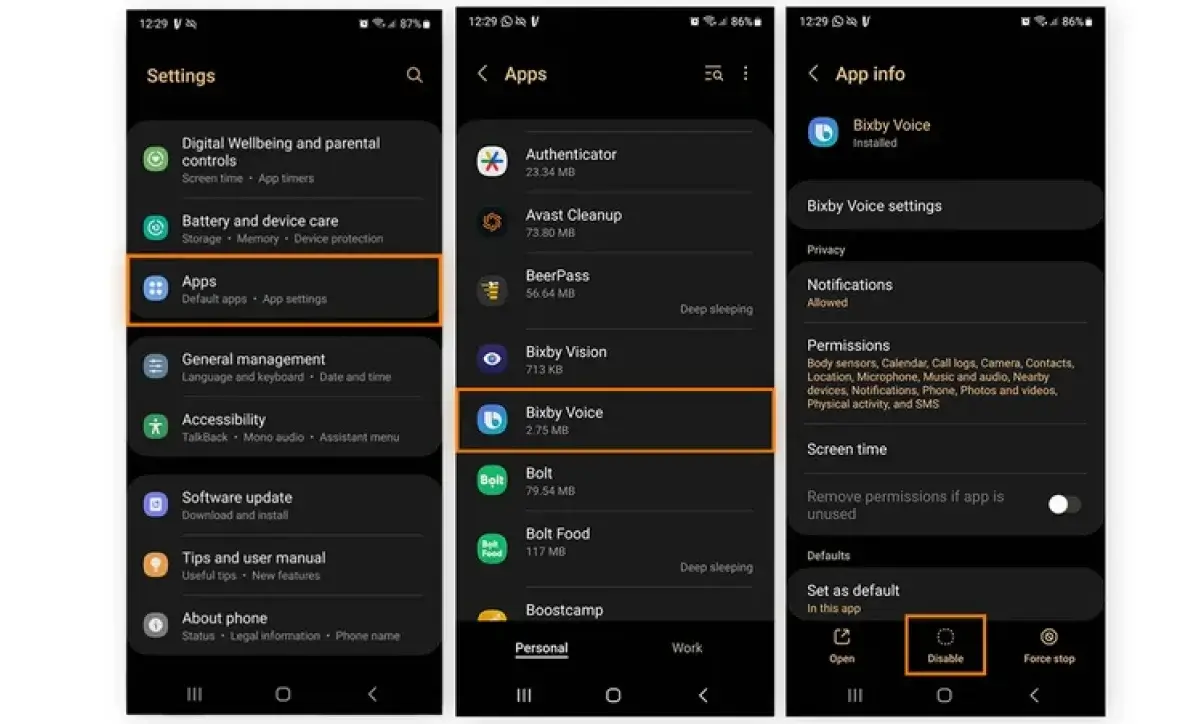
Disabling apps is a useful feature for hiding pre-installed or system apps that you don’t use but can’t uninstall. Disabling an app removes it from the app drawer and prevents it from running in the background, helping improve your phone’s performance while keeping your apps out of sight. Here's how to disable apps:
Open Settings:
- Go to Settings > Apps (or Apps & Notifications depending on your device).
Select the App to Disable:
- Find the app you want to hide from the list of installed apps. This could be a system app or any app you no longer need.
Disable the App:
- Tap on the app and select Disable. This will remove the app from your app drawer and prevent it from being updated or consuming system resources.
- For system apps, you may not see an "Uninstall" option, but you’ll have the Disable option instead.
Re-enable the App:
- You can always re-enable the app if needed, but it will stay hidden until you choose to show it again.
This method is ideal for system apps or bloatware that you don’t want cluttering your phone’s interface but still wish to keep installed.
Using Multiple User Profiles
Another effective way to hide apps without third-party apps is by creating a multiple user profile on your Android device. This feature allows you to set up a separate environment on your phone, where you can install and manage apps independently from your main profile. It’s especially useful for users who want to keep certain apps private or separate from their daily use. Here’s how to set it up:
Enable Multiple Users:
- Go to Settings > System > Multiple Users.
- Tap Add User to create a new profile. You may be prompted to set up a new account or switch to Guest Mode.
Install Apps in the New Profile:
- Once the new profile is set up, switch to it and install apps that you want to keep hidden from your primary profile.
- Apps installed in this secondary profile will not be visible on your main profile, effectively hiding them from others who have access to your device.
Switch Between Profiles:
- You can easily switch between user profiles by going to the User icon in your Quick Settings menu.
- Each profile can have its own set of apps, data, and settings, making it a great option for separating work and personal apps, or for keeping sensitive information hidden.
Why Hide Apps Using System Features?
- No need for third-party apps: Keep your device simple and secure without installing additional software.
- Perfect for privacy and decluttering: Both disabling apps and using multiple user profiles offer effective solutions for hiding apps without compromising system performance or data security.
- Seamless access: Disabling apps doesn’t delete them, and multiple user profiles offer easy switching between environments, keeping your apps and data organized.
By using these built-in features, you can hide app with calculator efficiently without the need for third-party applications, ensuring that your device remains organized and private while maintaining full control over what’s visible.
How to Hide Apps on Android Without Root Access?
If you want to hide apps Android device but don’t want to root your phone, there are several safe and effective methods you can use. Rooting your device can void your warranty and expose your phone to security risks, so it's best to stick to safe methods that keep your device secure and functional. Here are some of the best options for hiding apps on Android without the need for root access:
Safe Methods for All Android Users
These methods can be used on virtually any Android device without needing to root it. They are simple, secure, and offer privacy and organization without compromising system integrity:
Use Built-in Features:
Many Android phones come with built-in features for hiding apps. For instance, Samsung offers the Secure Folder, and Google Pixel devices allow app hiding via the app drawer settings.
Disable Unused Apps: If you have system apps or pre-installed apps you don't use, you can disable them through the System Settings. This removes them from your app drawer and stops them from running in the background, without needing root access.
Use App Drawers with Hiding Options:
Stock Android and many custom launchers like Nova Launcher offer built-in app hiding features. You can hide apps in the app drawer without affecting the apps' functionality. Here’s how:
- Go to your app drawer.
- Tap on the menu (three dots or settings) and select the option to hide apps.
- Choose which apps to hide from the view. These apps will still be installed and accessible, but hidden from the main screen.
Create a Guest or Multiple User Profile:
Android app locker allows you to create a guest profile or multiple user profiles. This lets you install apps in a separate environment, keeping them hidden from your main profile. The steps are:
- Go to Settings > System > Multiple Users. Create a new profile, where you can install apps you want to keep hidden.
- Switch between profiles from the Quick Settings menu to manage apps privately.
Use App Lock or Vault Apps:
- Although these apps don't hide the app icon, they lock apps with a PIN, password, or fingerprint. This prevents others from accessing apps like banking apps, social media, or messaging apps without your permission.
- Popular options include AppLock, Norton App Lock, and Keepsafe Vault.
Install Third-Party Launchers:
- Custom launchers such as Nova Launcher, Microsoft Launcher, or Apex Launcher provide advanced customization features, including the ability to hide apps within the app drawer.
- Most launchers don’t require root and are safe to use, providing a clean interface and extra privacy.
Why Hide Apps Without Root Access?
- Security: Rooting your device can introduce security vulnerabilities. By using these methods, you can maintain the security of your Android phone while hiding apps.
- No Warranty Risks: Rooting voids your device’s warranty, whereas these safe methods allow you to hide apps without the risk of voiding warranties or encountering device issues.
- Easier to Manage: These methods are user-friendly and allow you to keep your device organized and private, especially when you want to hide apps that contain personal data or sensitive information.
By using these safe and non-root methods, you can keep your Android device private, decluttered, and organized, all without compromising its security or voiding the warranty.
How to Hide Apps on Android with Root Access?
If you've chosen to root your Android device, you gain access to more advanced customization and control, including the ability to hide apps in ways that aren’t possible on a non-rooted device.
Rooting allows you to modify system files and use specialized tools to make apps completely invisible, providing extra privacy and security. However, it's important to understand the potential risks and benefits of rooting your device before proceeding.
Advanced App Hiding Methods
With root access, you have several powerful tools and methods at your disposal to hide apps completely, making them invisible not only on the app drawer but also from other apps or the system itself.
Using Xposed Framework and Modules:
- Xposed Framework is a popular tool that requires root access and allows you to install various modules for advanced app hiding.
- Modules like App Hider or Hide My Apps let you hide apps from the app drawer, notifications, and other parts of the system. These apps become completely invisible until you access them via specific gestures or passwords.
- Xposed can also be used to mask root access for apps that are sensitive to rooting, such as banking apps.
Using Titanium Backup:
- Titanium Backup is a powerful tool that can freeze or delete system apps, preventing them from appearing in the app drawer. While freezing them doesn’t delete the app, it effectively hides it and prevents it from running.
- You can also use Titanium Backup to restore these apps later, making it an excellent tool for temporary app hiding or managing system apps.
Using a Root File Manager:
- Root file managers such as ES File Explorer or Root Explorer allow you to manually move apps to hidden directories or folders that are not indexed by the system or user interface.
- By hiding apps within hidden directories, they will not appear in the app drawer, and accessing them will require navigating through the file manager.
Using Custom ROMs:
- Custom ROMs like LineageOS or Paranoid Android offer more options for privacy and customization, including the ability to hide system apps or hide apps at the system level.
- These ROMs allow you to adjust the behavior of apps and enable additional security features.
- With root access, users can modify the ROM to hide apps or even change the way apps interact with system resources, increasing both privacy and control.
Risks of Rooting an Android Phone
While rooting offers greater control and customization, it comes with several risks that users need to consider before proceeding with app hiding or other advanced modifications:
Void Warranty:
Rooting an Android device voids the warranty, meaning that if anything goes wrong with the phone, you may not be able to return it for repair or service.
Security Risks:
- Rooting exposes your device to potential security vulnerabilities. Malicious apps can gain root access and cause severe damage, such as stealing personal data, tracking your activity, or even bricking your device.
- Rooted phones may be more susceptible to malware and hacking attacks because the system’s security features are bypassed.
Bricking the Device:
If something goes wrong during the rooting process, such as a failed update or incompatible software, your device could be bricked (rendered unusable). Recovery from this can be difficult and may require specialized tools.
Loss of System Updates:
Rooting prevents you from receiving official system updates directly from your manufacturer. This means you may miss out on the latest features, security patches, and bug fixes.
Some apps may also fail to function correctly after a system update if they rely on untouched Android features.
Performance Issues:
In some cases, rooting and running custom mods or apps can lead to performance instability. Apps that rely on root permissions may conflict with other apps, causing crashes or slower device performance.
Key Considerations for Rooting
- Full Customization: Rooting provides ultimate customization options, especially for hiding apps, managing system resources, and enhancing security features.
- Advanced Control: If you want to hide apps completely or modify system apps, rooting gives you the ability to control every aspect of your Android device.
- Weigh Risks vs. Benefits: Before rooting, ensure that the benefits (e.g., increased privacy and customization) outweigh the potential security risks and loss of warranty.
Rooting your Android phone provides a high level of customization, especially when it comes to hiding apps. However, it's important to proceed cautiously and fully understand the risks involved, as rooting can significantly alter the functionality and security of your device.
If you decide to root, using tools like Xposed Framework and Titanium Backup can help you hide apps in advanced ways, but always ensure you have proper backups in place to protect your data.
Can Hidden Apps Still Run in the Background?
When you hide an app on your Android device, either through built-in settings or third-party methods, it may not appear on your home screen or app drawer, but the question remains: Can hidden apps still run in the background?
The answer is yes, depending on the method used to hide the app. Here’s how hidden apps behave when running in the background, including their impact on notifications, data usage, and permissions.
Notifications, Data Usage, and Permissions
Hidden apps are not completely “inactive” once hidden. They can still perform certain actions in the background, depending on how they're hidden and the app’s permissions. Here’s what you need to know about their background behavior:
Notifications:
- Hidden apps can still send notifications even if they are not visible on your home screen or app drawer.
- For example, messaging apps, email apps, and social media apps can push notifications for new messages, updates, or alerts, even if they are hidden.
- Settings can usually be adjusted to control notifications for hidden apps, but by default, these apps can still alert you to new events or messages.
Data Usage:
- Hidden apps may continue to use mobile data or Wi-Fi to sync content, perform updates, or send notifications, depending on the app’s behavior.
- For example, cloud-based apps like Google Drive or weather apps may still update their data or send push notifications, even if they are hidden.
- Some apps, like media streaming services, may continue to use background data to refresh content or sync files, which can increase data consumption.
Permissions:
- Hidden apps can still access the permissions granted to them, such as location, camera, microphone, and storage.
- For example, hidden apps that have access to your camera or microphone could still potentially be running in the background, depending on the app's functions.
- You can control permissions through Android settings and restrict certain permissions for apps that are running in the background, but the app’s functionality may be limited if you revoke critical permissions.
Key Points to Remember:
- Notifications: Hidden apps can still send alerts and updates, even if they're not visible on the screen.
- Background Data Usage: Apps that run in the background may still consume data, refresh content, or sync automatically.
- Permissions: Hidden apps can still access granted permissions, so it’s important to review app permissions to maintain privacy and security.
Managing Hidden Apps
- Disable Background Data: Some Android devices allow you to disable background data usage for specific apps, helping you save on data usage and reduce the impact of hidden apps.
- Limit App Permissions: Review and adjust app permissions to ensure hidden apps do not access sensitive data or resources when running in the background.
- Notification Controls: Use Android's notification settings to control or silence notifications for hidden apps, ensuring they don’t disrupt your experience.
While hidden apps can still function in the background, their visibility is limited, and system controls like data and notification settings can help you manage their impact on your phone’s performance, privacy, and security.
How to Find or Unhide Hidden Apps on Android?
If you've hidden apps on your Android device and want to unhide or restore them, there are several methods depending on how you hid them in the first place. Whether you're using built-in features, third-party launchers, or app lockers, restoring or finding hidden apps is a straightforward process. Here’s how you can find or unhide hidden apps on your Android phone:
Steps to Restore Hidden Apps
Here’s a step-by-step guide to unhide apps based on how they were hidden:
Unhiding Apps Using Built-In Features:
Stock Android (App Drawer):
- Open the App Drawer by swiping up from your home screen.
- Tap on the three vertical dots (or gear icon) in the upper-right corner and select Home Settings or Hide Apps.
- From the list of hidden apps, simply select the app(s) you want to restore.
- Once unhidden, the app will be visible in your app drawer or home screen.
Samsung (One UI):
- Open the App Drawer.
- Tap the three vertical dots in the upper-right corner and choose Settings.
- Select Hide Apps to see the list of hidden apps.
- Tap on the app you want to restore and select Done. It will now appear in the app drawer and home screen.
Xiaomi (MIUI)
- Go to the App Drawer and tap the three dots at the top-right corner.
- Select Settings > Hide Apps.
- Choose the app(s) you want to unhide and confirm by tapping Done.
Unhiding Apps Using Third-Party Launchers:
Nova Launcher:
- Open Nova Settings.
- Navigate to App Drawer > Hide Apps.
- Tap the unhide icon next to the apps you want to restore.
- These apps will now be visible in your App Drawer or on the home screen.
Microsoft Launcher:
- Open Microsoft Launcher Settings.
- Go to App Drawer > Hide Apps.
- Choose the apps you want to restore, and they will appear back in the App Drawer.
Unhiding Apps Using App Lock or Vault Apps:
If you used an App Lock or Vault app to hide apps (such as AppLock or Keepsafe), follow these steps:
- Open the App Lock or Vault app and enter the PIN or password.
- Locate the hidden apps in the app interface.
- Unhide or restore the apps to the home screen or app drawer by selecting the restore or unhide option.
Using Multiple User Profiles:
If you hid apps by creating a multiple user profile:
- Go to Settings > System > Multiple Users.
- Select the user profile where the app was hidden.
- Switch to the profile and install the app(s) again, or restore them from the app settings.
Best Apps to Hide Apps on Android
If you want to hide apps on your Android device, several trusted app hiders and vault apps can help enhance your privacy and security. These are the best app to hide apps from your app drawer, lock them with passwords or fingerprints, and secure sensitive information. Below are some of the best apps you can use to hide apps on Android:
Trusted App Hiders and Vault Apps
1. AppLock
AppLock is a widely used app locker that allows you to lock specific apps with a PIN, password, or fingerprint. Although it doesn't completely hide apps, it restricts access to them, ensuring that only authorized users can open them.
Key Features:
- Lock apps with a PIN, password, or fingerprint.
- Hide media files like photos, videos, and messages.
- Offers stealth mode to hide the app icon.
- Invisible pattern lock for added security.
2. Hide It Pro
Hide It Pro is a vault app that hides apps, photos, and videos. It disguises itself as an audio manager, giving the illusion of a regular app, while secretly hiding and securing apps.
Key Features:
- Disguised as an audio manager.
- Hides apps, photos, videos, and documents.
- Password protection and fake login to confuse intruders.
- Provides secure backup for hidden files.
3. Nova Launcher
Nova Launcher offers a built-in feature that allows users to hide apps from the app drawer, providing a cleaner and more private home screen.
Key Features:
- Customizable home screen and app drawer.
- Hide apps in the app drawer.
- Lock home screen layout to prevent accidental changes.
- Apps are still accessible via search or specific gestures.
4. Keepsafe Vault
Keepsafe Vault is a vault app designed to hide and protect sensitive information like apps, photos, and videos. It offers robust privacy features and biometric authentication.
Key Features:
- Hide apps, photos, videos, and documents.
- Password protection and biometric authentication.
- Offers cloud backup for hidden files.
- Includes a decoy vault to trick potential intruders.
5. App Hider
App Hider is a dedicated app for hiding apps on Android. It also provides the option to clone apps, making it a great choice for managing multiple accounts on the same device.
Key Features:
- Hide apps from the app drawer.
- Clones apps to manage multiple accounts.
- The app itself is hidden and can only be accessed with a password or fingerprint.
- Includes break-in alerts and a fake cover for extra security.
6. Vault-Hide
Vault-Hide is another powerful vault app for hiding apps and securing personal files. It also provides a private browser for secure web browsing.
Key Features:
- Hide apps, photos, and videos.
- Private browser for secure internet use.
- Offers stealth mode to hide the app icon.
- Break-in alerts and fake vault to confuse intruders.
To hide apps on iPhone, you can use features like App Library or Screen Time settings to remove them from your home screen while keeping them accessible in the App Library for easy retrieval.

Common Problems When Hiding Apps on Android
While hiding apps on Android devices is a great way to improve privacy and organization, there are a few common problems users may face. These issues can arise from system updates, launcher resets, or app behavior, making it challenging to keep apps hidden. Here’s a breakdown of some of the common problems when hiding apps and how to resolve them:
Apps Reappearing After Updates
One of the most frustrating issues when hiding apps on Android is that some apps may reappear after system or app updates. This happens because updates can reset settings or re-enable apps that were previously hidden. Here's why this occurs and how to manage it:
Automatic App Restores:
After a system update or a specific app update, hidden apps may be restored to their original positions on the home screen or app drawer.
App Cache and Data:
Some apps store settings or preferences, including visibility, in the cache or app data. After an update, the app might revert to its original state, making it visible again.
How to Fix:
Disable App Updates: If an app continues to reappear after updates, you can prevent automatic updates for that specific app via the Google Play Store.
- Open the Google Play Store.
- Go to the app’s page and tap on the three dots in the upper-right corner.
- Uncheck Enable auto-update.
Clear Cache: Clearing the cache of apps can help ensure that hidden app settings aren’t restored after an update. Go to Settings > Apps > [App Name] > Storage > Clear Cache.
Use App Lockers:
For persistent issues, using an app locker like AppLock or Hide It Pro can help secure apps and prevent them from reappearing.
Launcher Reset Issues
Another common problem arises with launcher resets. Launchers are responsible for managing your home screen and app drawer, and when the launcher resets, it can undo any customization settings you’ve applied, including hiding apps. Here’s how launcher reset issues can affect hidden apps:
Restoration of Default Settings:
When a launcher resets (either manually or due to a bug), the settings to hide apps might be lost, causing the hidden apps to show up again on your home screen or app drawer.
App Drawer Behavior:
Some third-party launchers may reset the app drawer settings, undoing app hiding configurations. This could cause apps to appear even if they were previously hidden.
How to Fix:
Backup Launcher Settings:
Many third-party launchers, such as Nova Launcher or Apex Launcher, allow you to back up your settings. This ensures that, in case of a reset, your custom settings (like hidden apps) can be easily restored.
- Open the Nova Settings app.
- Tap on Backup & Restore and save your preferences to the cloud or local storage.
Reconfigure Launcher Settings:
After a launcher reset, you may need to manually re-hide apps. Go to the launcher’s settings and follow the steps to hide apps again.
For Nova Launcher, go to Settings > App Drawer > Hide Apps.
Use a More Stable Launcher:
If you're facing frequent launcher resets, consider switching to a more stable launcher, like Google’s Pixel Launcher or One UI (for Samsung devices), which tend to have fewer issues with resets and configuration loss.
Is It Safe and Legal to Hide Apps on Android?
Hiding apps on your Android device can be a helpful tool for maintaining privacy and keeping certain apps away from prying eyes. However, many users are concerned about the safety and legality of using this feature. Whether you're hiding sensitive apps, social media apps, or just decluttering your home screen, it's important to consider the privacy, security, and legal implications of hiding apps on Android.
Privacy, Security, and Legal Considerations
Privacy Concerns
Hiding apps can significantly enhance your digital privacy by keeping sensitive apps such as banking apps, messaging apps, and personal information out of view. However, there are some important privacy considerations to keep in mind:
- Access Control: When hiding apps, make sure that you set up proper password protection, PINs, or fingerprint verification to prevent unauthorized access.
- Third-Party Apps: Be cautious when using third-party apps or launchers to hide apps, as some may collect or misuse your personal data. Always choose trusted apps with good reviews and strong privacy policies.
- Cloud Backups: Some apps, even when hidden, may still back up data to the cloud. Ensure you understand how these backups work to avoid exposing sensitive information unintentionally.
Security Risks
While hiding apps can protect them from casual snooping, there are potential security risks that come with using app hiders, especially if you’re using third-party apps or rooting your device:
- Rooting Risks: Rooting your device gives you more control, but it also exposes your phone to security vulnerabilities. A rooted device can be more susceptible to malware, hacking, and data breaches.
- Data Leaks: If you're using third-party vault apps or hiders, there's a risk that these apps could be compromised or contain security flaws. Be sure to choose apps with encryption features to protect your data.
- System Instability: Using third-party apps or launchers that alter system settings may cause instability or unexpected behavior in your device, such as app crashes, system slowdowns, or even malfunctioning apps.
Legal Considerations
In general, hiding apps on Android is legal for personal use, but there are some legal aspects you should consider:
- Legal Compliance: Hiding apps related to illegal activities (e.g., pirated apps, unlicensed content) can potentially violate laws. It’s important to ensure that the apps you’re hiding comply with local laws and regulations.
- Parental Control: If you're using app-hiding features for parental control, it’s important to consider the legal implications of monitoring your child’s device. Many countries have specific laws about privacy and digital surveillance for minors. Always make sure you’re not infringing on your child’s rights or breaking any laws regarding consent or privacy.
- Workplace Monitoring: In a corporate environment, if you're hiding work-related apps, be aware that employers might have access to monitor and track devices provided for work purposes. Company-owned devices may have monitoring software installed, which could potentially detect hidden apps, and hiding apps for unethical purposes (like bypassing security protocols) could lead to disciplinary actions.
Manufacturer and App Store Guidelines
While hiding apps is generally legal, it’s essential to ensure that it doesn't violate any terms of service for your device manufacturer or the app stores:
- App Store Policies: Google Play Store and other app stores may have restrictions on apps that encourage hiding apps for malicious purposes. Always ensure that the app you’re using to hide apps complies with Google Play’s terms of service.
- Manufacturer Restrictions: Some Android device manufacturers have built-in settings that allow users to hide apps. While this is fully supported, using unauthorized third-party apps may violate the manufacturer’s warranty or cause other conflicts with the operating system.
DXB APPS – A Leading Mobile App Development Company in UAE
DXB APPS is a top mobile app development company in UAE, specializing in custom Android app development, iOS apps, and cross-platform app solutions. Our team of expert developers delivers high-quality mobile app development Dubai solutions tailored to your business needs. We ensure user-friendly, scalable, and secure apps, from initial design to post-launch support.
Custom Android App Development Solutions by DXB APPS
Our team of mobile app developers offer custom android app development solutions to help businesses enhance customer engagement and streamline operations. Our services include:
- End-to-End Development: Full-service development from concept to launch.
- UI/UX Design: Focused on creating intuitive, user-friendly designs.
- Performance Optimization: Fast, responsive apps across devices.
- Advanced Features: Integrations like GPS, payment gateways, and real-time notifications.
- Ongoing Support: Continuous updates and support to keep your app running smoothly.
Building Secure and Privacy-Focused Mobile Apps in UAE
Security and privacy are top priorities at DXB APPS. We build top mobile application development Abu Dhabi solutions that ensure data protection through:
- Data Encryption: End-to-end encryption to secure sensitive data.
- User Authentication: Multi-factor authentication (MFA) and biometrics for secure access.
- Secure APIs: Safe third-party integrations.
- Regulatory Compliance: Adherence to GDPR, CCPA, and UAE data protection laws.
- Security Audits: Regular testing to identify vulnerabilities.
Why Choose DXB APPS for Android App Development?
Here’s why businesses choose DXB APPS for Android app development:
- Experienced Team: Skilled developers and designers with industry expertise.
- Quality & Innovation: High-quality, innovative apps that stand out.
- Customer-Centric: Tailored solutions focused on your business goals.
- Timely Delivery: On-time app delivery within budget.
- Post-Launch Support: Continuous maintenance and updates.
DXB APPS is your trusted partner for android app development and web development Dubai services delivering secure, user-friendly, and innovative mobile app solutions that meet your business needs.
Conclusion
Hiding apps on an Android phone is a simple yet effective way to enhance privacy and organization. Whether you're using built-in features, third-party launchers, or specialized vault apps, there are several ways to keep your apps hidden from prying eyes. Each method offers its own benefits, whether it's hiding apps for security reasons, decluttering your home screen, or simply protecting sensitive data.
By choosing the right solution for your needs, you can ensure that your apps remain secure and private while maintaining a seamless and personalized phone experience. Whether you're looking to hide apps temporarily or organize your device for a cleaner, more efficient setup, there’s a method to suit everyone. Always remember to consider the privacy and security of the tools you use, ensuring your apps stay protected in a safe and organized way.
End-to-End Mobile App Development Services for Startups, Enterprises & Growing Businesses
At DXB APPS, our experienced mobile app developers create secure, user-focused Android and iOS applications designed to support scalability, performance, and long-term success.
Get a Free App ConsultationFAQS
Can Hidden Apps Be Detected?
Yes, hidden apps can be detected, depending on how they are hidden. Apps may still be visible through searches, notifications, or background data usage. However, apps hidden using Secure Folders or app lockers are harder to detect. On rooted devices or with third-party vault apps, detection is possible, especially with security tools. For maximum security, use trusted privacy apps and ensure your device is protected.
Do Hidden Apps Still Update Automatically?
Yes, hidden apps can still update automatically, depending on your settings. If automatic updates are enabled in the Google Play Store, hidden apps will continue to receive updates in the background, even if they are not visible on your home screen or app drawer. To prevent this, you can disable automatic updates for specific apps by going to the Google Play Store, selecting the app, and turning off the auto-update option.
Will Hiding Apps Affect Phone Performance?
Hiding apps on your Android phone generally won't affect performance directly. The apps remain installed and functional, whether visible or hidden. However, if hidden apps are running in the background, consuming data, or using system resources, they can impact performance. To maintain optimal performance, it’s a good idea to disable unused apps, restrict background data, or use battery optimization features. Hiding apps purely for organizational purposes should not cause any noticeable slowdown.
How to hide apps on Samsung?
To hide apps on a Samsung device, open the App Drawer and tap the three dots in the top-right corner. Select Settings, then tap Hide Apps. Choose the apps you want to hide and tap Done. These apps will be hidden from the app drawer but can still be accessed via search or Settings > Apps. You can unhide them by repeating the steps.
Which calculator hide app is best?
Calculator-style hide apps like Calculator Vault and Calculator: App Hider let you hide apps, photos, and videos behind a calculator interface with PIN or fingerprint protection. HideU focuses on file security, while App Hider offers both hiding and app cloning. Choose apps with strong security and discreet icons, and always download from trusted sources like the Google Play Store.
What is hide app icon?
A hide app icon feature allows you to conceal the app icon from the home screen or app drawer while keeping the app installed and functional. This means the app is still accessible, but it is no longer visible to anyone casually browsing through your phone. The app may be accessed via search, a specific gesture, or by entering a secret PIN or password.